

Where a wireless reading comes from
This guide shows how to test Wi-Fi speed at home, why wireless numbers rarely match a cable, and which router, band, and placement choices move the result the most. Run the checks in order and you will know whether the shortfall sits in the connection coming into the building or in the radio link between your router and your device.
Every measurement is local to one device, one band, and one moment. A phone across the apartment, a laptop three feet from the router, and a smart TV streaming upstairs are testing three different links, even when they share one internet plan. Read each result as a reading of that link only, then compare like with like before you change anything.
Run the test in this order
Five steps, roughly ten minutes. Each one isolates a different part of the path so a single reading does not send you chasing the wrong fix.
Test from the same room as the router
Stand two to three feet from the router with no wall between you. This is the ceiling your Wi-Fi can reach, so write the download and upload numbers down before moving anywhere else in the home.
Repeat the run with an Ethernet cable
Plug a laptop straight into a LAN port and test again. If the wired number barely moves, your plan or the line coming in is the limit. If it jumps well ahead of the wireless number, the router-to-device link is what you are working on.
Check which band your device picked
Open the Wi-Fi list on your phone or laptop. A 5 GHz or 6 GHz network is usually the fast lane; a 2.4 GHz name is the long-range lane. Many routers show one merged name, so look for band or channel details in the connection settings before you blame the plan.
Move the device to where you actually sit
Take the same device to the couch, the bedroom, the kitchen table and test there. Distance, floors, mirrors, brick walls and running appliances all take a bite. The gap between your two sets of numbers is the real cost of coverage in your home.
Run the check three times and compare
Wireless results drift, so a single run can flatter or undersell a connection. Three runs across a few minutes show the range you actually live with at that spot, which is a fairer thing to compare than any one peak reading.
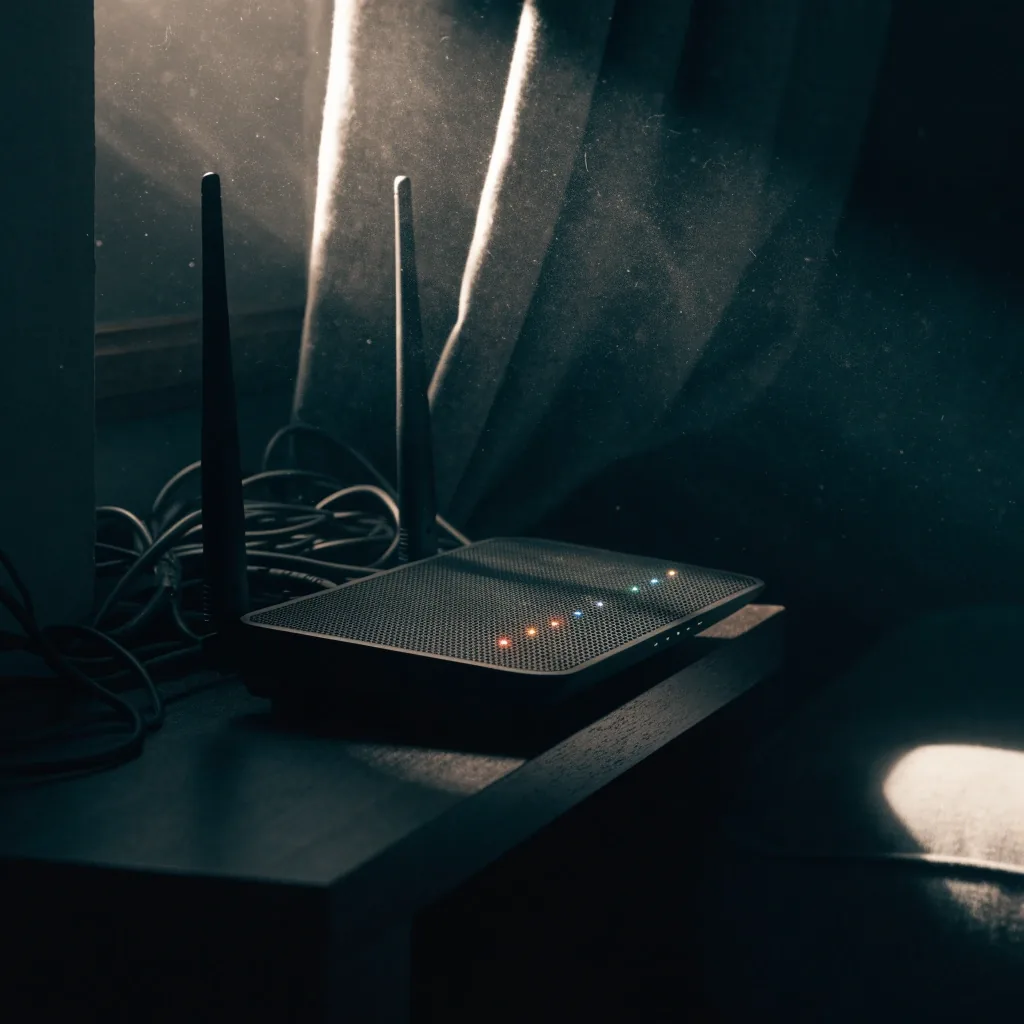
How a speed test actually reads a Wi-Fi link
Most speed test tools work the same way, and knowing the sequence helps you read the results without overreacting to one number.
A speed test opens several parallel connections to a nearby test server and pulls data down for a set number of seconds. Download speed is the average rate of that burst. Upload runs the same job in reverse. Latency is measured on small probes sent before and during the transfer, so a big difference between idle latency and latency under load usually points to bufferbloat on the router rather than a slow line.
Because the whole measurement happens over the air, it counts every loss along the wireless path. A weak signal, a congested channel, or a device with an older Wi-Fi chip will drag the number down before the test ever reaches your internet service.
Jitter is the spread between individual latency samples, and packet loss is the share of probes that never came back. Both matter more than peak download speed for calls, video and gaming, and both show up first when Wi-Fi signal is thin or a neighbor's network is crowding your channel.
Download speed
The rate your device pulls data from the server. Streaming, downloads and page loads depend on it most.
Upload speed
How fast your device sends data out. It matters for video calls, cloud backups and shared files, and it is often the smaller number on a home plan.
Latency over Wi-Fi
Round-trip time in milliseconds. Wireless adds a few milliseconds on top of a wired path, and video calls notice it before they notice speed.
Why wireless numbers differ from wired
Wireless is a shared medium, not a private cable. Everything below sits between your device and the router and can move the result more than your internet plan does.
Down
Distance and walls
Every wall, floor and mirror between router and device takes signal. Two rooms away can cost you a large slice of the wired rate, and brick or concrete walls cost far more than drywall.
Band
2.4 GHz and 5 GHz
2.4 GHz travels further and through more walls, but it is slower and crowded by microwaves, doorbells and neighbors. 5 GHz and 6 GHz are faster and cleaner, and they fall off sooner, which is why a device on the far side of the home often drops bands on its own.
Load
Congestion and traffic
Wi-Fi is half-duplex: devices take turns talking, so a busy home shares the airtime. Test while backups, updates or a streaming TV are running and you are measuring the whole household, not your device alone.
Router, band and placement
Three things you can change at home, ranked by how much they usually move the reading.
Placement beats hardware upgrades
Lift the router off the floor, keep it out of closets and cabinets, and put it near the middle of the home instead of the corner where the line enters. Central placement with clear air usually moves the reading more than swapping the router for a newer model.
Band steering versus split names
A router that merges 2.4 GHz and 5 GHz into one name decides the band for you, and it can leave a fast device on the slow lane for hours. Splitting the names in the router settings gives you a way to choose the fast band on purpose and to test each one separately.
Channel crowding and channel width
In apartments and dense neighborhoods, many networks share the same channels. Switching to a less crowded channel, or letting the router auto-select, often improves both throughput and jitter without touching the internet plan.
Mesh nodes and old device limits
A mesh node can extend coverage, but a wireless backhaul shares the same air with your devices. An older laptop or phone chip also sets its own ceiling; testing from a second, newer device tells you whether the limit is your router or the hardware in your hand.

Reading Wi-Fi test results without overreacting
Wireless numbers bounce. A single run that lands below your plan is normal, and it does not mean the connection is broken. Before you call the provider, walk the same device through the sequence above and look at the spread across runs, not the lowest single reading.
If a cable and a device two feet from the router still fall far short of the plan, then the problem is upstream and worth reporting. If only the far rooms lag, that is coverage, and the fix lives inside the home. Knowing which of those two you have saves a support call or a hardware purchase you did not need.
Troubleshooting slow internetCommon questions about Wi-Fi testing
Why is my Wi-Fi speed so much lower than my plan?
Plan speed is the rate your internet provider delivers to the modem, not what a single wireless device can pull over the air. Distance, walls, band, channel crowding and the Wi-Fi chip in your device all set a lower ceiling. A wired test tells you what the provider is actually delivering; the wireless test tells you how much of that your device can use where it sits.
Should I use 2.4 GHz or 5 GHz for a speed test?
Test both, because they answer different questions. The 5 GHz or 6 GHz band shows what your connection can do and is the fairer reading of your plan. The 2.4 GHz band shows how well Wi-Fi reaches the far corners of the home. If the 2.4 GHz result is much lower, that is expected, and it explains why devices far from the router feel slow.
Does my device affect the speed test result?
Yes. Older phones and laptops often cap below what your router and plan can deliver, so a slow reading may be the device rather than the network. Run the same test from a second, newer device in the same spot and compare. If the newer device reads much higher, the limit is the older hardware, not your internet service.
What latency and jitter should I watch for on Wi-Fi?
Wireless always adds a little latency, and that is fine for browsing and streaming. It becomes a problem for calls and games when jitter climbs or packets start dropping. If your latency under load is much higher than at rest, or if you see any packet loss, look at router placement, band choice and channel crowding before you change your plan.
How often should I retest my Wi-Fi?
Test after any change: a new router, a moved desk, a new appliance in the room, or a plan upgrade. Otherwise a few runs every month are enough to spot a slow drift. Two or three readings at the same spot and time of day are more useful than one test made in a hurry.
Keep reading
How to read your speed test results
What download, upload, latency, jitter and packet loss each say about your connection.
Speed test metrics glossary
Plain definitions for the units and terms that appear on a result screen.
How we test and report
Our method for running, repeating and writing up a measurement.
Still not sure where the shortfall is?
Write down what you tested, which band the device used, and how far it sat from the router. That short list turns a vague complaint into something we can work through with you.
2724 Clarendon Rd, Brooklyn, NY 11226 · Monday to Friday, 9:00 AM – 6:00 PM